Connecting ChatGPT to your brain
You do this on chatgpt.com, from your computer: the phone app cannot upload plugins. It works on every ChatGPT plan, the free one too, and it does not need developer mode.
What you need
A Cobrain account (free, with your email) and this file: it is the plugin you upload to ChatGPT. The Cobrain address is already inside. No key, no password.
Access: read and write, with exactly your permissions. Duration: until you revoke it, from the Connections page in the dashboard.
The steps
5 in all. One action per step; wherever something can go wrong, the fix is inside that step.
Download the Cobrain plugin
Press the button below: a small file called cobrain-chatgpt-plugin.zip lands in your Downloads. Inside there is the address of your brain and the Cobrain icon: no key, no password. Do not unzip it, ChatGPT takes it as it is.
Download the pluginOpen Plugins and press +
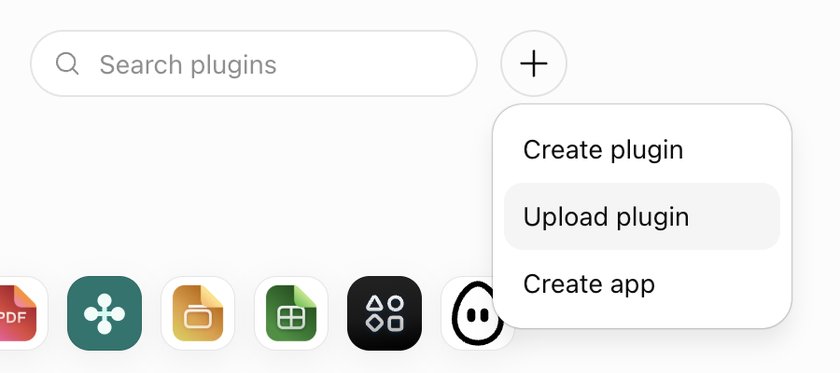
On chatgpt.com, in the sidebar on the left, open Plugins. Top right, next to «Search plugins», there is a round +: press it. A small menu opens.
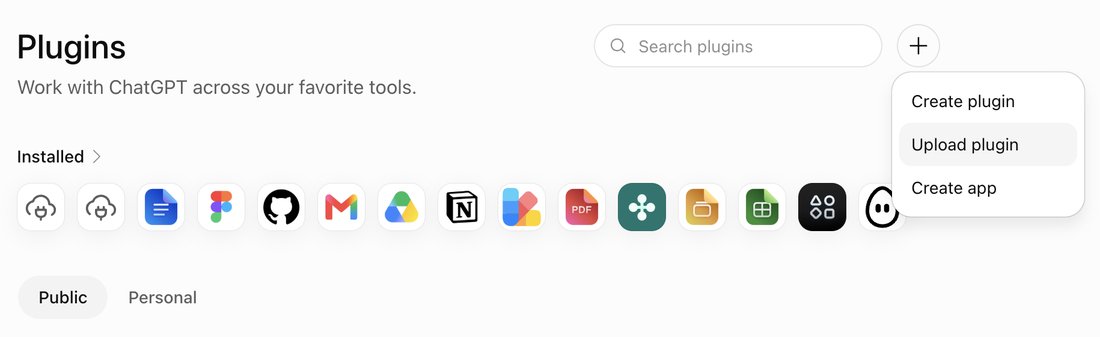
Choose Upload plugin and pick the file
In the menu choose Upload plugin and select the file you downloaded, cobrain-chatgpt-plugin.zip. The Cobrain page opens, with the logo and «One memory for all your AIs».
Connect it to your brain
On the plugin page, under MCP server, press the gear next to cobrain and connect it. A Cobrain page opens telling you what ChatGPT will be able to read and write: press Allow access. The window closes by itself.

Try it in a chat
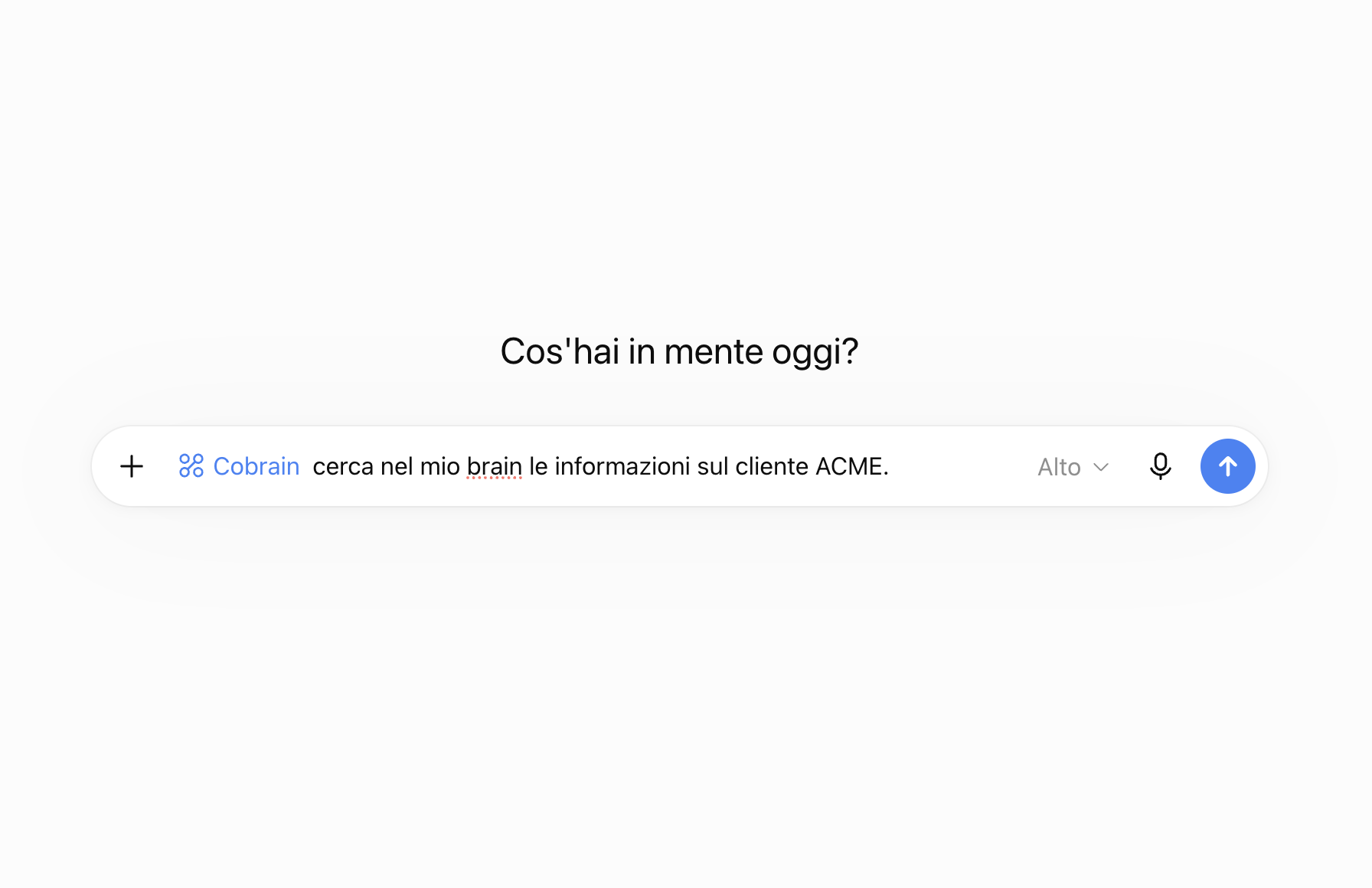
Open a new chat and press the + to the left of the message box: in the list turn on Cobrain. The name appears in blue in front of what you write — from there on ChatGPT can read the brain. Ask for something that is in it.
The other way: developer mode
Only if Upload plugin is not in your menu. You build the plugin by hand with the address of your brain, and you need developer mode, which ChatGPT offers only on some plans.
Copy the Cobrain address
It is the only thing you need to carry into the other program: no key, no password. Press Copy below and keep it on the clipboard until the end.
https://cobrain.space/mcpOpen ChatGPT’s Settings
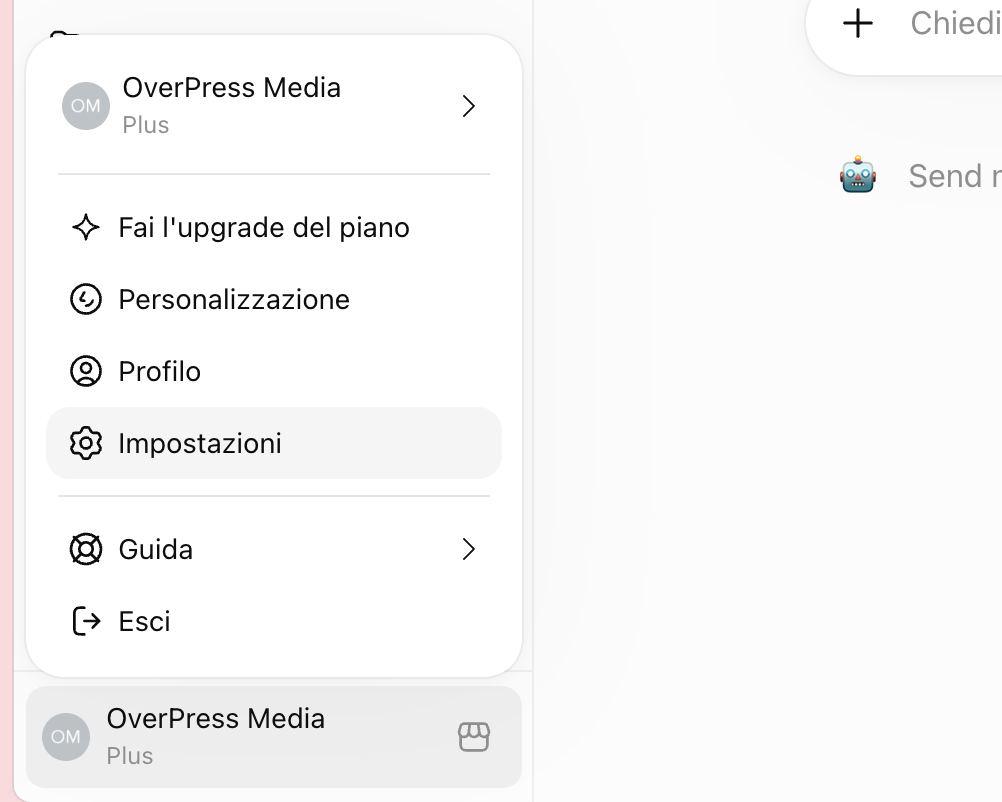
Go to chatgpt.com on your computer. Bottom left, click your name: a menu opens. Choose Settings.
Open Plugins, then Developer mode
In the left column of the settings choose Plugins. Scroll the list to the bottom: under «Browse plugins» there is Developer mode. Click it.
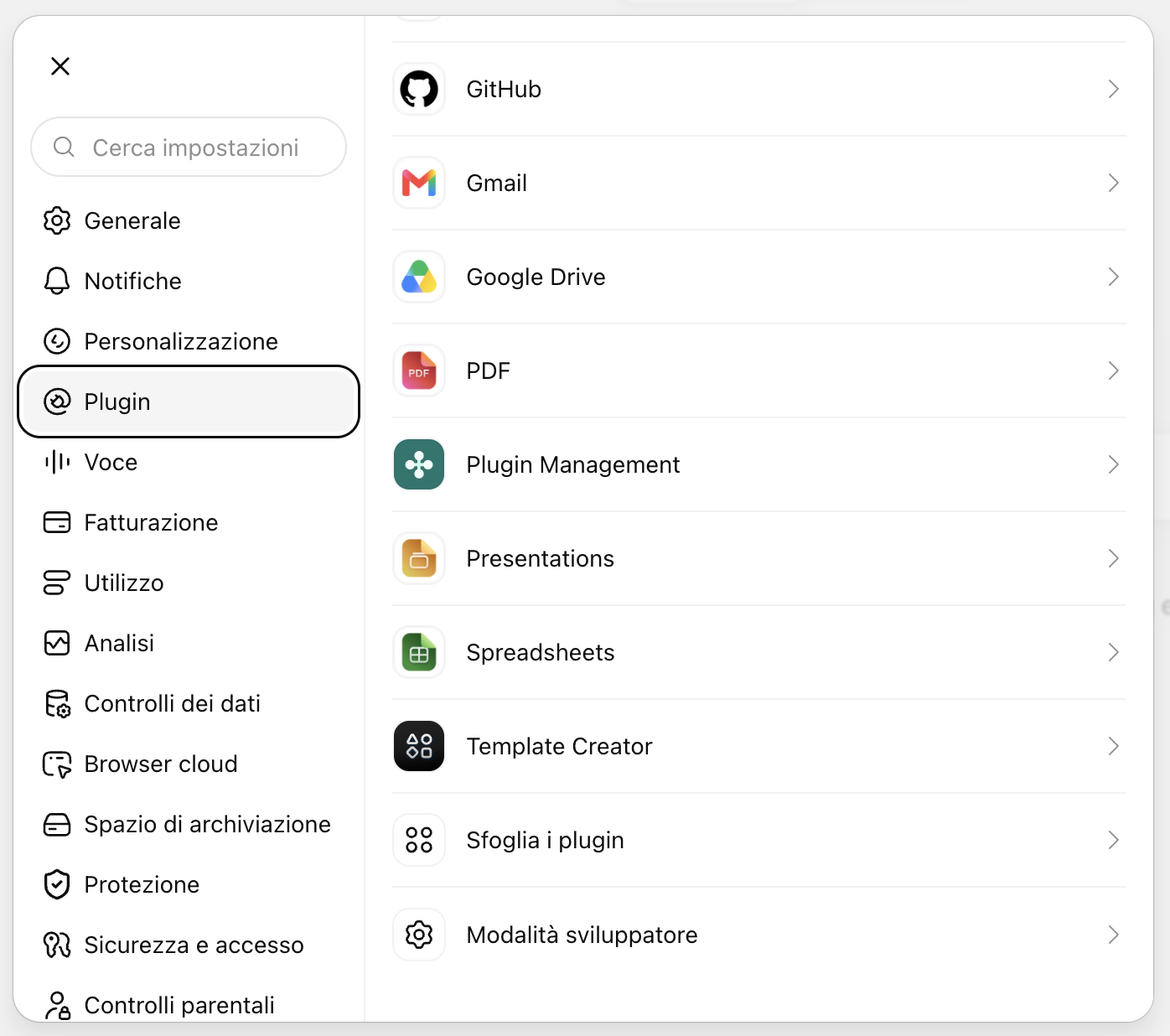
Turn on developer mode
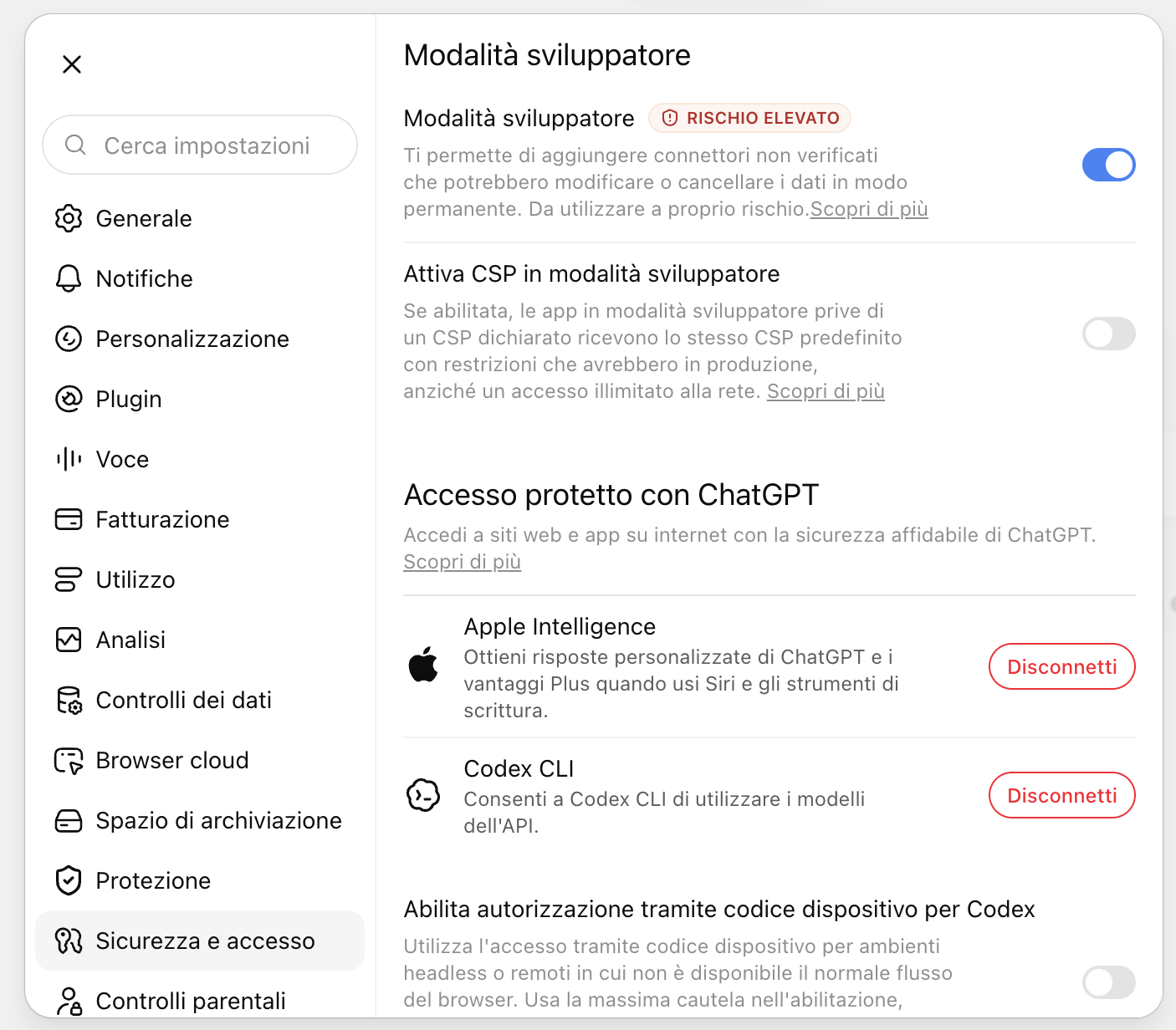
Flip the Developer mode switch on: it turns blue. It is the setting that lets ChatGPT connect to an outside service such as your brain. You only do it once. Leave the other switch, Enable CSP, off.
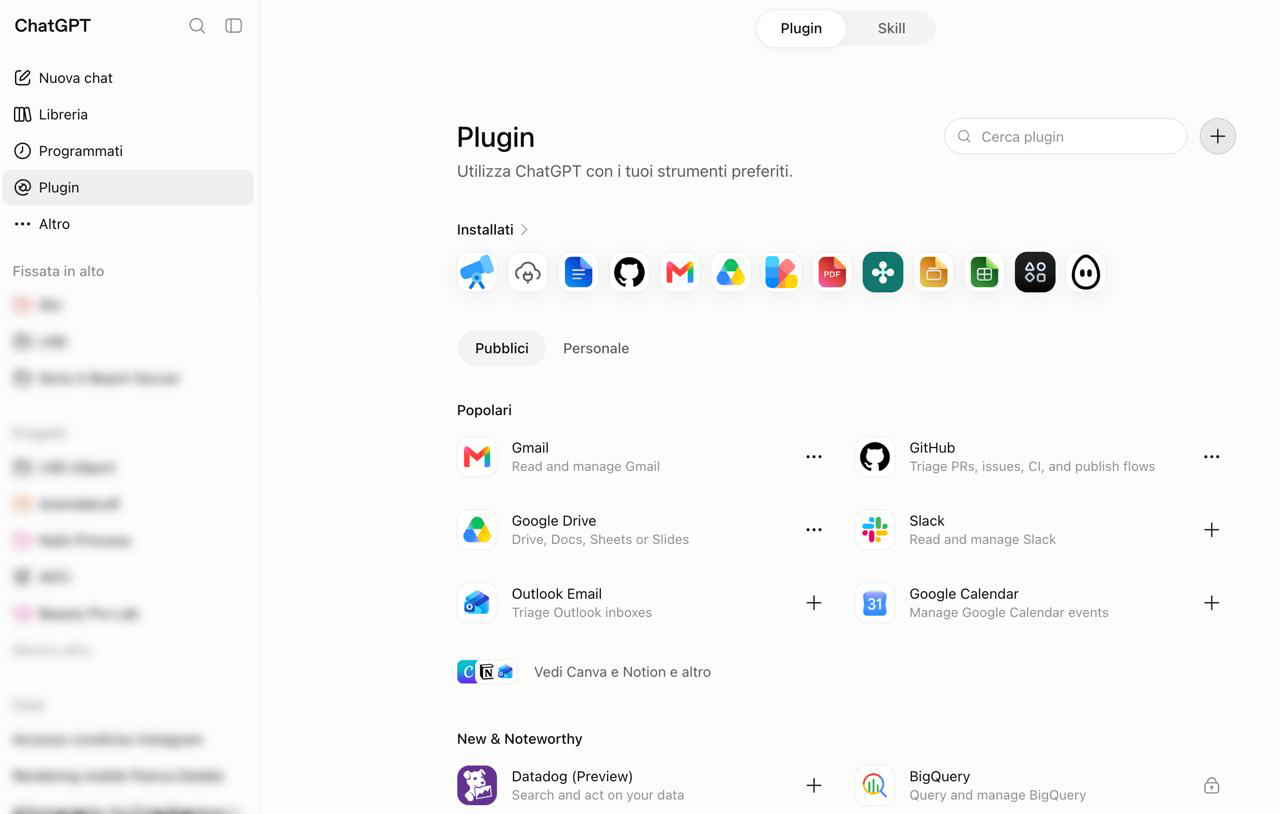
Open Plugins and press +
Close the settings. In the sidebar on the left there is Plugins: open it. Top right, next to «Search plugins», there is a round +: press it. The «New plugin» window opens.
Fill in «New plugin» and press Create
Name it Cobrain. Description and icon can stay empty. Under Connection keep Server URL (not «Tunnel») and paste the address you copied in step 1. Under Authentication choose OAuth, leaving the advanced settings alone. At the bottom tick I understand and want to continue — without that tick the button does nothing — and press Create.
https://cobrain.space/mcp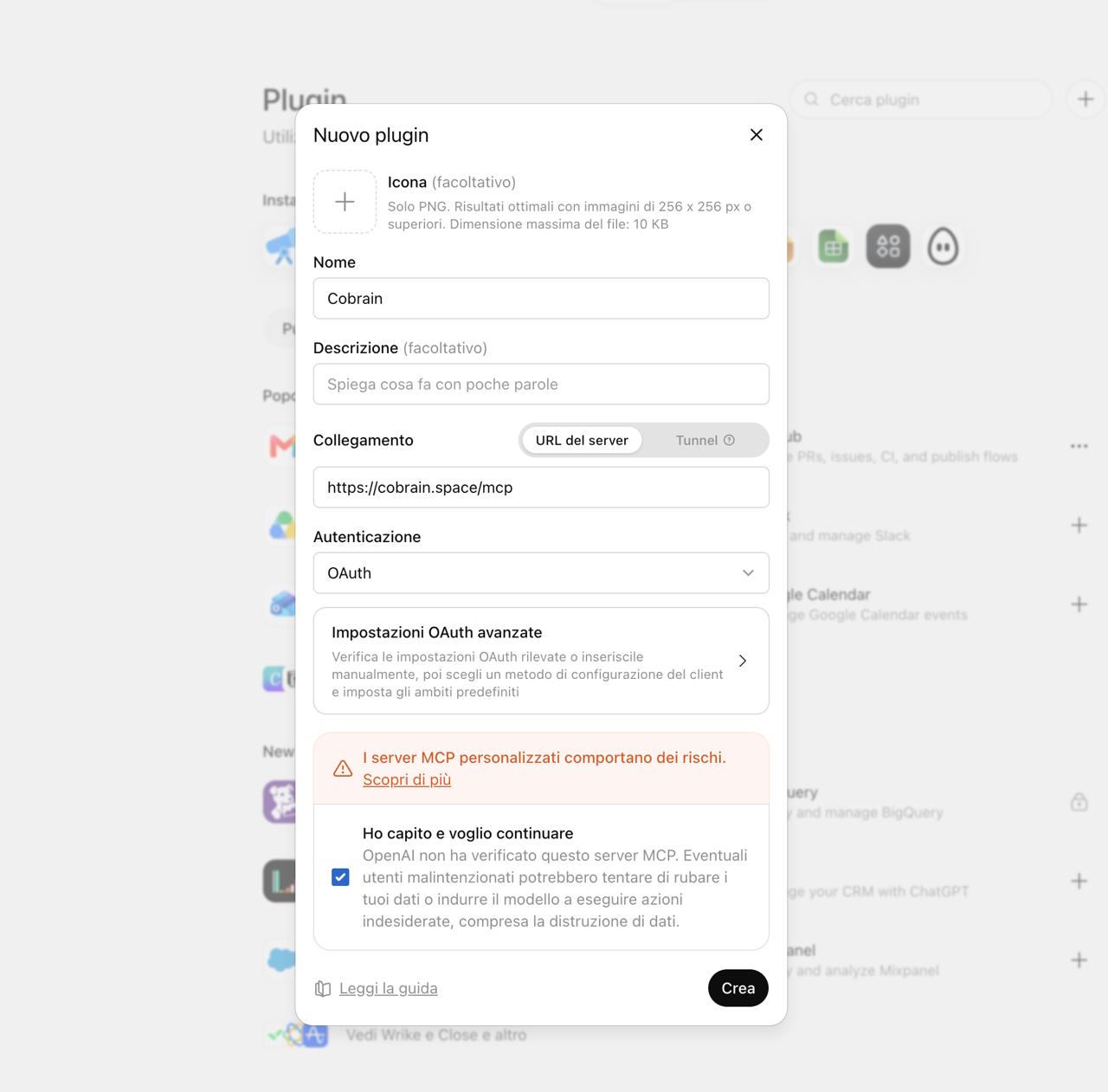
Press Sign in with Cobrain
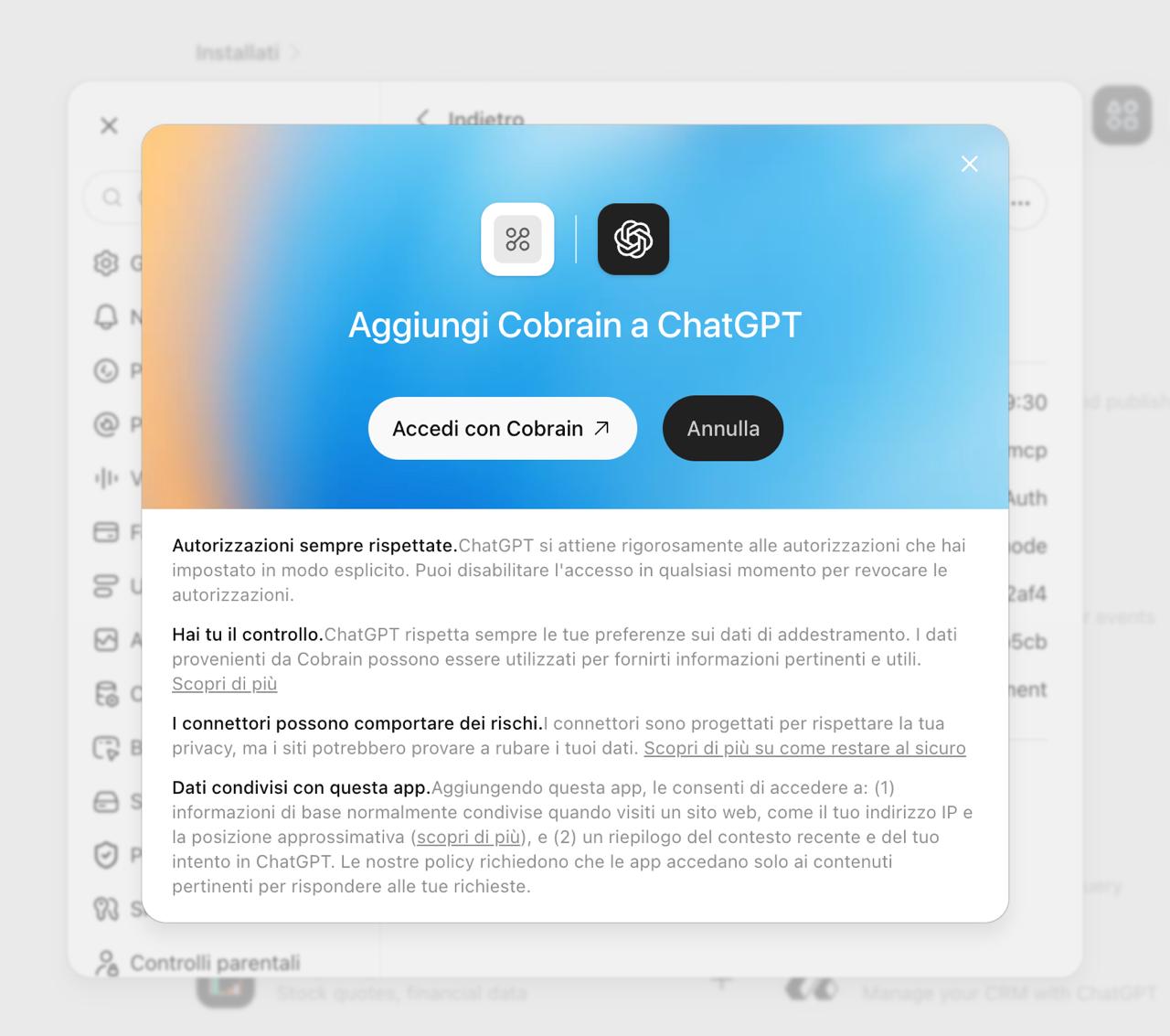
«Add Cobrain to ChatGPT» appears. Press Sign in with Cobrain: a Cobrain page opens telling you what ChatGPT will be able to read and write. Read it and press Allow access. The window closes by itself and the plugin becomes active.
Try it in a chat
Open a new chat and press the + to the left of the message box: in the list turn on Cobrain. The name appears in blue in front of what you write — from there on ChatGPT can read the brain. Ask for something that is in it.
When you are done, try this
If it answers with your notes, it is connected.
Type in the chat: «search my brain for information about the client ACME». If it answers with your notes, it is connected.
If it gets stuck
No Upload plugin in the menu of the +? ChatGPT has not turned it on for your account yet: follow the other way, with developer mode, at the end of the guide on the site.
If an entry is not called what it is called here
The screenshots are from September 2026; the last two still show ChatGPT in Italian, but the layout is the same in English. OpenAI renames its menus frequently (in July 2026 «Connectors» became «Plugins»): if an entry is not called what the guide says, look for the closest name, and check OpenAI’s support page, which keeps itself up to date.
For anything else: hi@cobrain.space. The other guides: every AI.
First the account, then the connection.
You sign in with your email, come back here and follow the steps. Three minutes, and your AI can read your brain.

