You told ChatGPT who your clients are and how you like your emails written. A week later it asks again. Or a banner tells you memory is full. Or the memory settings are switched off and you have no idea who did it.
Here is how ChatGPT's memory works in 2026, how to fix the common problems, and the part no setting will fix, because it comes from where that memory lives.
How ChatGPT's memory works now
There are two layers. Most of the confusion comes from treating them as one.
The first is the list of saved memories: short facts ChatGPT writes down, either because you asked ("remember that I work in Rome") or because it decided they were worth keeping. You can read the list, delete entries one at a time, or wipe it. This is the layer that fills up.
The second is your chat history. Since 2025 ChatGPT can also draw on past conversations, and in June 2026 OpenAI started rolling out something it calls dreaming, a background process that reads through your chats and keeps memory up to date by itself. It began with Plus and Pro in the US and is reaching other countries and the Free and Go plans in stages. So if your colleague sees a memory option you don't have, that is probably why.
Both layers live under Settings → Personalization. You can turn off either one. A Temporary Chat uses neither and adds nothing to them.
"Memory is full": what to do
The limit is on the saved list. Once you hit it, ChatGPT stops adding to it. Nothing already saved disappears, but new things you tell it won't be written down.
- Open the list in Settings → Personalization and read it top to bottom. Most lists have duplicates, facts that stopped being true months ago, and details that mattered for exactly one conversation.
- Delete first. Ten useless entries gone free more room than twenty useful ones rewritten.
- Merge what belongs together. Five memories about the same client can be one sentence: delete them, then ask ChatGPT to remember the single version.
- Keep only what should hold in every chat, like your role or the language you want answers in. Details about one project don't belong here, and we'll get to where they do.
If your account is already on the newer memory system you'll see the warning less often, because memory is rebuilt from your chats rather than stacked entry by entry. The list you manage by hand still has a ceiling, though.
Memory is off, or it doesn't save
Check these in order. The first one catches most people.
- The switches. In Settings → Personalization, make sure saved memories and chat history are actually on.
- Temporary Chat. A temporary conversation is never remembered. That is the whole point of it.
- A work account. On Business and Enterprise workspaces an administrator can disable memory, in which case the switch is greyed out and the decision isn't yours.
- The rollout. New memory features reach plans and countries at different times.
- It chose not to. ChatGPT doesn't save everything it hears. If something matters, say "remember that…" and wait for the confirmation.
What no setting fixes
Once memory works, you start noticing a different kind of limit. None of these are bugs. They follow from the memory living inside ChatGPT, inside your account.
Other AIs can't see it. If you also use Claude, Claude Code or Codex, each one starts from zero or from its own separate memory. Explaining the same client three times gets old fast.
Your colleagues can't see it either. Whatever ChatGPT has learned about a project stays in your account, so whoever picks the project up tomorrow starts from scratch.
It also keeps impressions rather than documents. The exact wording of last month's decision, a client's full brief, the approved price list: you want those in a text you can open and correct.
And you can't really take it with you. You can read your memories, but you can't export them as files you own and move them somewhere else.
For personal preferences, none of this matters much. That is what built-in memory is for. For work knowledge, the stuff that belongs to a client or a team, it's the wrong place to keep it.
A memory outside ChatGPT
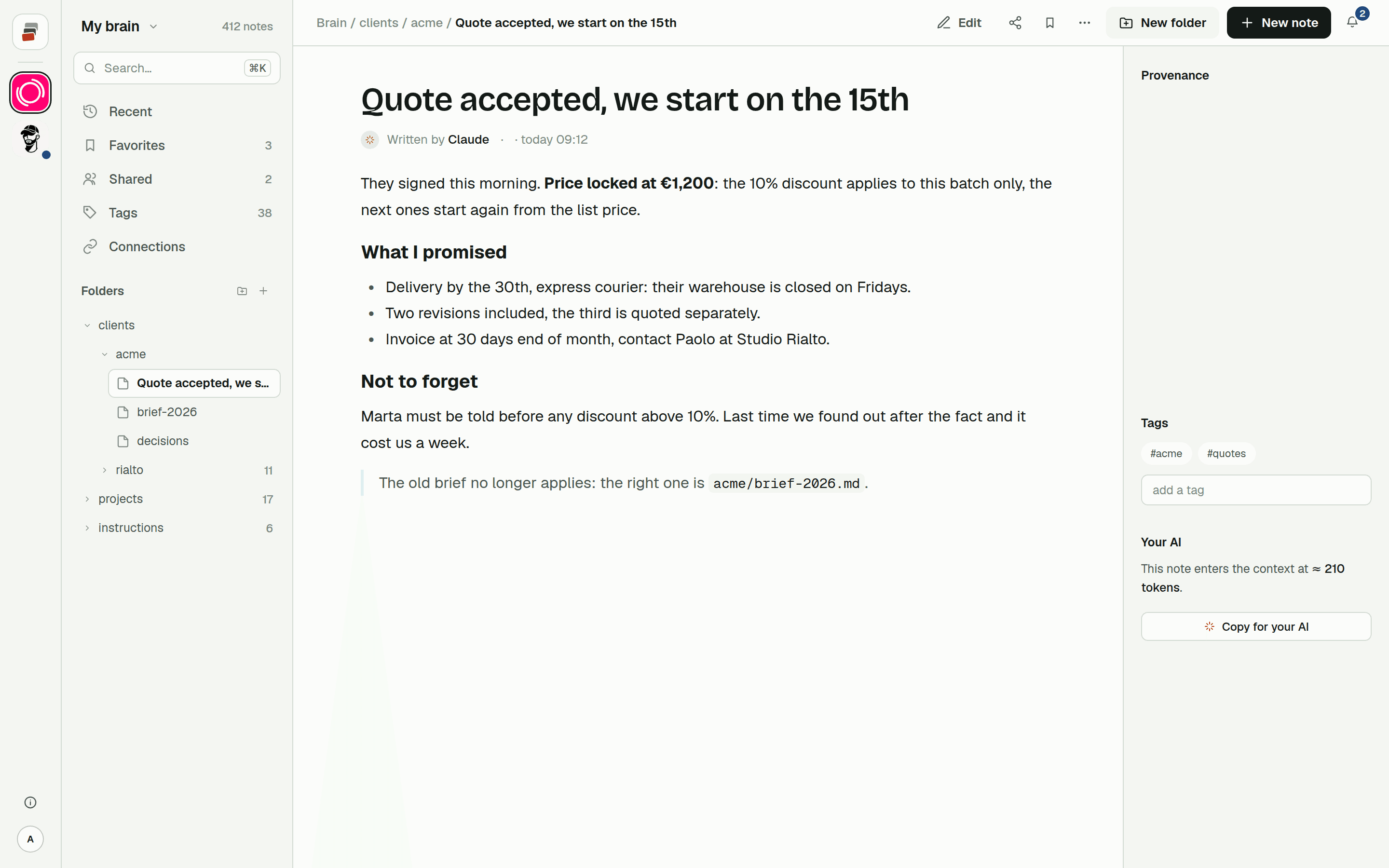
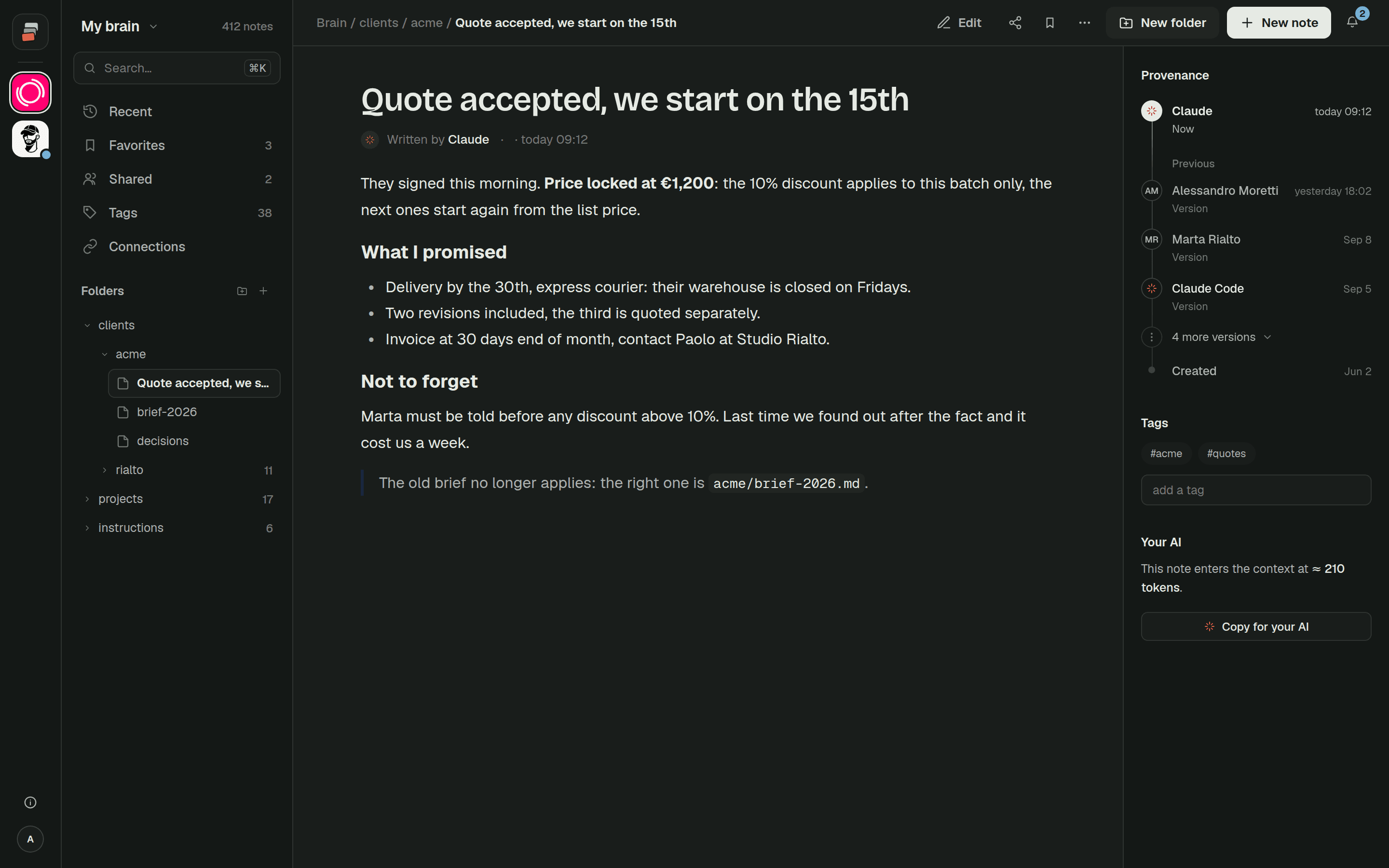
Our answer was to keep project knowledge in notes that sit outside any single AI and let the AI read and write them. ChatGPT can do that through a connector built on MCP, an open protocol that Claude, Claude Code and Codex support too.
What that looks like day to day:
- The notes are plain Markdown in folders, one folder per client or project, with the rules and decisions nobody should have to explain again.
- ChatGPT searches them when it needs something and writes to them when a decision gets made. You can read every line it wrote and fix it.
- Claude and Claude Code open the same notes, so switching AI doesn't mean starting over.
- You can share a folder with a colleague or a client, read-only or with write access.
The split we use is simple. ChatGPT's own memory keeps track of you: tone, language, habits. The shared notes hold the work. Built-in memory stops filling up with project details, and project details stop being locked inside one person's account.
That's what we built Cobrain to do. Connecting ChatGPT takes a few minutes with the ChatGPT guide, and the free plan is enough to try it.
Quick answers
Does deleting a chat delete what ChatGPT remembered from it? Not necessarily. Saved memories are stored separately from your chats, so to remove something you have to delete the memory itself.
Can I see everything ChatGPT remembers about me? The saved list, yes: it's in Settings → Personalization and you can edit it. What ChatGPT draws from your chat history isn't a list you can read line by line, but you can switch it off.
Is there a way to give ChatGPT unlimited memory? Not inside ChatGPT. The workable route is to keep long-term knowledge in external notes it can search through a connector, and leave built-in memory for what should be in every conversation.