You've decided to try Claude, or to move over for good. The awkward part isn't learning a new app. It's that ChatGPT knows things about you and your work that Claude doesn't, and you'd rather not spend the first week explaining them again.
Good news first: there's an official way to carry most of it over, and it takes a few minutes. The less good news is that it copies a snapshot, once. Below is the whole move in order, what each step brings along, and what gets left behind.
What can move, and what can't
ChatGPT keeps several different things, and each one moves differently.
The saved memories, the short facts ChatGPT wrote down about you, can go to Claude through its memory import. Custom instructions and project instructions are text you wrote yourself, so you copy them by hand. Your chats come out in a data export, as a ZIP file. Claude doesn't turn them into memory, but you can pick the useful ones and hand them over.
Then there's what ChatGPT draws from your chat history. OpenAI says that information can change as ChatGPT updates what it thinks is useful, and it isn't a list you can copy out. The import prompt below is the closest you get.
If you want a refresher on how those layers work on the ChatGPT side, we covered it in ChatGPT memory full or not working.
Step 1: bring your memories over with Claude's import
Claude has a built-in import for memory from other AI providers. It's available on the Free, Pro, Max and Team plans, on the web and in Claude Desktop.
- In Claude, open Settings → Memory and click "Start import". On accounts still on the older layout, it's under Settings → Capabilities, in the Memory section.
- Claude shows you a prompt. Copy it, paste it into ChatGPT, and let ChatGPT answer. The prompt asks for your instructions on response style, personal details, projects and goals, the tools you use, and corrections you've made to its behaviour, in the original wording.
- Read the answer before you move on. If ChatGPT skipped something you know it knows, ask it for that too.
- Paste the whole answer into the box in Claude and click "Add to memory".
Claude then extracts the key points and saves them as separate memory entries. Depending on your account they appear shortly after, or within 24 hours, and Claude offers a button to review what it learned. Do review it. Anthropic describes the import as experimental, and says Claude focuses on work-related topics, so personal details that have nothing to do with work may not be kept.
One thing to be clear about: this is a copy made on the day you run it. Anything ChatGPT learns afterwards stays in ChatGPT.
Step 2: move your instructions by hand
The import prompt does ask ChatGPT about your instructions, but what comes back is its retelling. You wrote the originals, they're short, and copying them takes a minute.
- Whatever you wrote in ChatGPT's custom instructions goes into Claude's account-wide instructions, in Settings. Those apply to every conversation.
- Instructions you gave a single ChatGPT project go into the instructions of the matching Claude project.
It's also a good moment to tidy up. Half of a year's instructions were written to fix a problem the old model had. Start short and add when Claude actually gets something wrong.
Step 3: export the chats worth keeping
In ChatGPT, go to Settings → Data Controls and click Export under Export Data. A few details from OpenAI's help centre:
- The file can take up to 7 days to arrive. You get an email (or a text, if your account only uses a phone number).
- The download link expires 24 hours after it arrives, and you need to be signed in to the same account to use it.
- It's a ZIP with your chat history and other account data. Chats you already deleted aren't in it.
- On a Business or Enterprise workspace the export isn't available from the settings, so ask your workspace administrator.
Don't pour the whole archive into Claude. Most of it is one-off questions. Look for the handful of conversations that hold real work, like a client brief you refined over weeks or the reasoning behind a decision, and bring those.
Step 4: rebuild your projects in Claude
Claude projects hold instructions and files, and each one has its own memory, so what Claude learns about one client doesn't leak into another. On the free plan you can have up to five.
For each ChatGPT project that matters, create a Claude project, paste the instructions from step 2, and upload the files and the exported chats from step 3. Then have one normal conversation in it and see what Claude still asks you. Whatever it asks is what's missing.
How Claude's memory, projects and chat search fit together is explained in Claude memory: how it works across chats.
What the move doesn't fix
After all four steps Claude will know you reasonably well. Some problems come along anyway, because they have nothing to do with which assistant you picked.
The copy starts drifting straight away. Keep ChatGPT for a few things, which most people do, and the two memories go their separate ways from the first day.
Summaries lose detail. The import asks ChatGPT to write out what it knows, and Claude then extracts what it thinks matters. That's fine for "answer in Italian, keep it short". It's not fine for the exact terms of a contract or the price list a client approved.
Each move is a new migration. If next year the better tool is a different one, you do all of this again. Claude at least lets you ask it to write out its memories verbatim, so you can save a copy, but you're still carrying a summary from one box to another.
And it's still personal. Your memories sit in your account. A colleague who works with you on the same client starts from nothing, whichever AI they use.
The easier move: keep the memory outside both
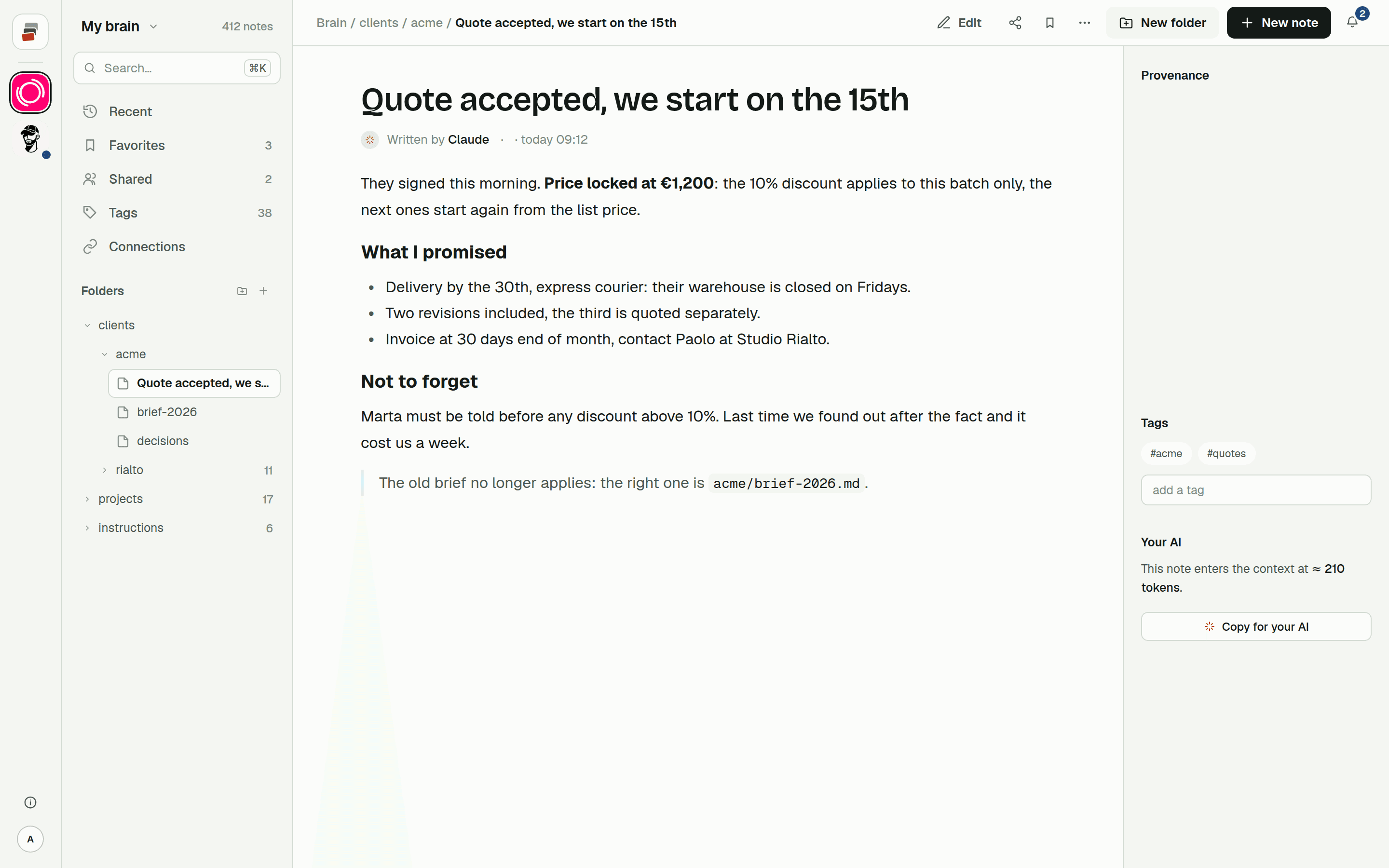
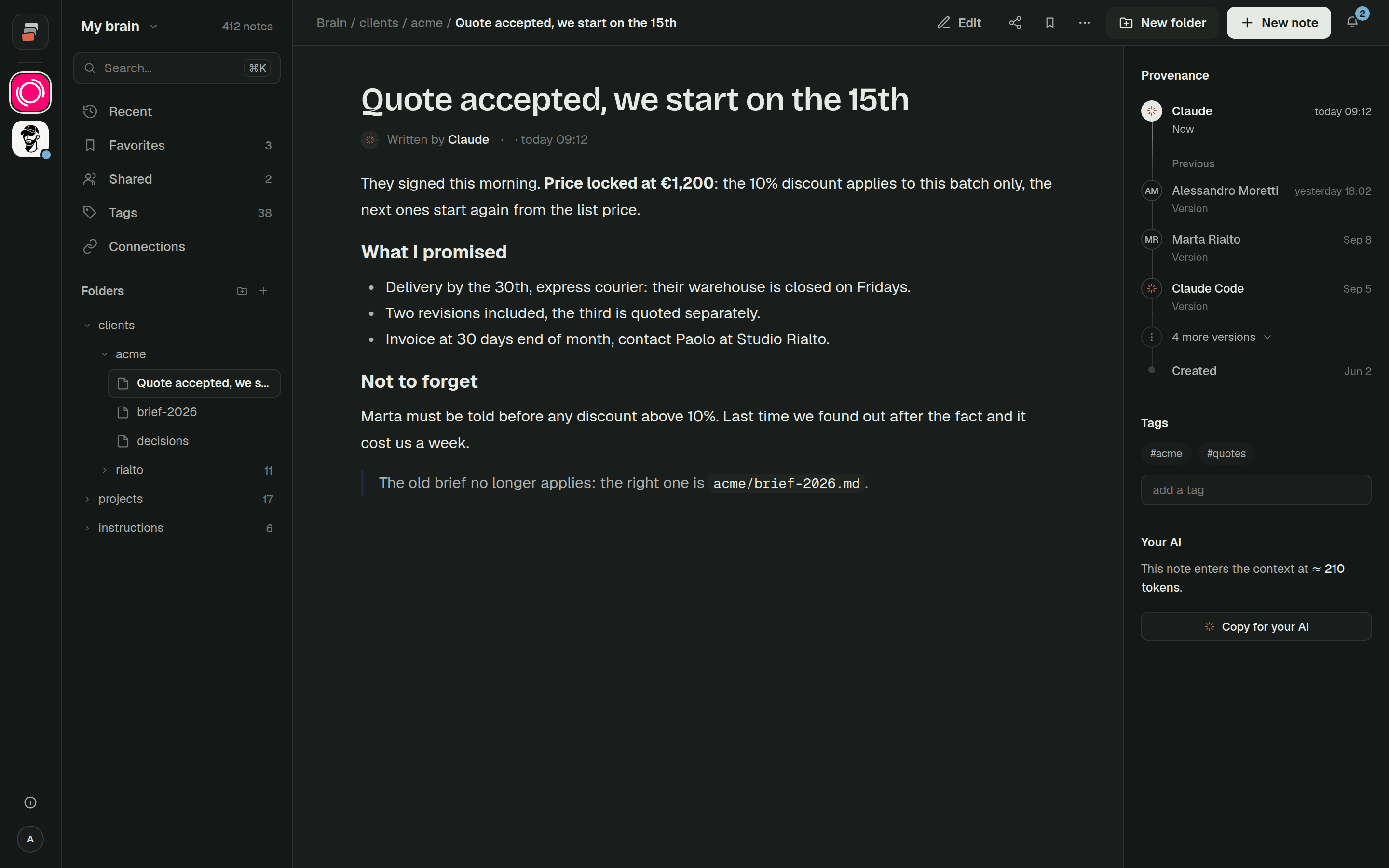
If moving between AIs keeps happening, and it will, the lasting fix is to stop keeping work knowledge inside any of them. Put it in notes that sit outside, and let every AI you use read and write them.
That works today because Claude, ChatGPT, Claude Code and Codex all support connectors built on MCP, an open protocol. With a shared Markdown memory, each client or project is a folder of plain notes, where the rules and decisions get written once. Connect Claude and ChatGPT to the same memory and you can switch between them in the middle of a week without re-explaining anything, because they're both reading the same page. We walk through an example on across different AIs.
Built-in memory still has a job: remembering how you like your answers. The work itself lives in the notes, where you can read every line and correct it.
That's what we built Cobrain for. Connect Claude and ChatGPT in a few minutes each, and the free plan is enough to try it.
Quick answers
Can I transfer my ChatGPT memory to Claude? Yes. Claude's memory import (Settings → Memory → Start import) gives you a prompt to run in ChatGPT, and you paste ChatGPT's answer back into Claude. It's a one-time copy and it doesn't stay in sync.
Does Claude import my ChatGPT chat history? Not as memory. You can export your chats from ChatGPT as a ZIP and upload the conversations you need to a Claude project as files.
Will I lose my ChatGPT memories if I switch? No. Nothing is deleted on the ChatGPT side. Your saved memories stay there until you remove them, and Claude gets a copy.
How long does the ChatGPT data export take? Up to 7 days, according to OpenAI. The download link then expires 24 hours after it arrives.
Can I use ChatGPT and Claude together without keeping two memories? Not with built-in memory alone. Keep shared work knowledge in external notes both can reach through MCP, and let each app's own memory hold only your personal preferences.